Introduction
Getting Started
Remove Ads
FAQ
Task Manager Widgetback to top
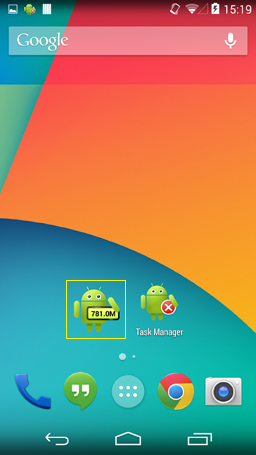
Task Manager contains a sweet widget to monitor memory usage, fast kill task or launch application when click widget. Please have a look at yellow box in following picture:
The widget contains the value of current available memory size. If you want this widget to display on your phone desktop, just follow the standard steps to add a new android widget:
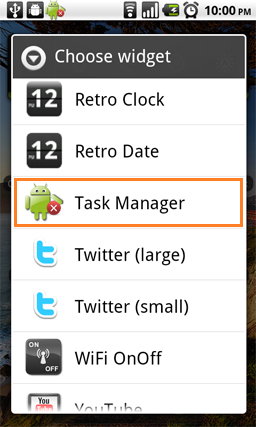
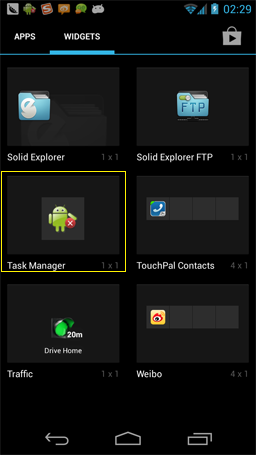
Note: If your device is running Android 3.0 above, the behavior of adding widgets may be different. Take Android 4.4 as an example:
By default, this widget refresh every 10 seconds, but if you concern the battery usage, you can choose refresh interval in preference page as you wish from following values:
When you click this widget on desktop, you can choose from two actions to trigger:
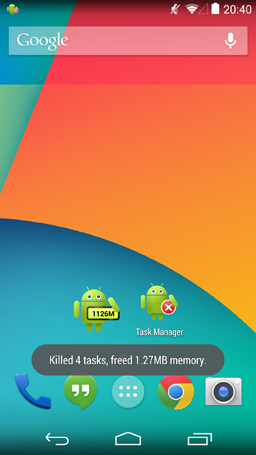
The default action when click widget is to kill all tasks to easily free memory by one click. When you click widget to kill tasks, it will popup a tip to notify you how many task and memory are freed. If you want to change to another action, you can modify it in Task Manager preference page. After you change the widget behavior, please remove current widget and create a new one to apply the change.
Tasks Overviewback to top
As following picture, in main screen of task manager, you will get the full list of current running tasks. And within the title bar, you will get current available memory status, as "Avail Mem". This memory status will refresh automatically when task list changes. Also you can click "Refresh" button to manually refresh the available memory status and running applications list.
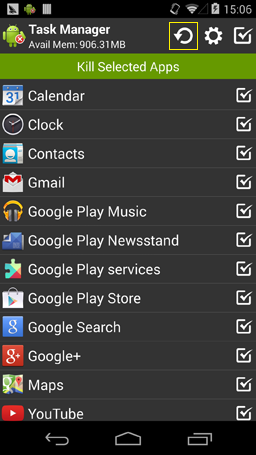
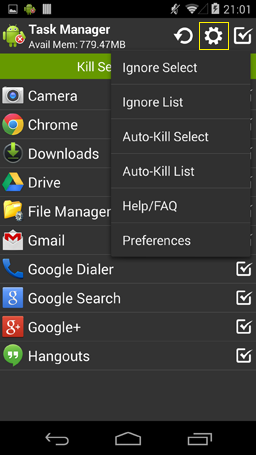
You can launch context menu by clicking settings icon as following picture:
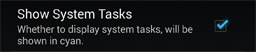
By default, system tasks are hidden because killing them may lead your android device to abnormal status. Kill system task may cause device hang temporarily as they try to restart. For junior users, we do not recommend you to enable this feature. If you are familiar with responsibility of system tasks, you can enable it in preference page:
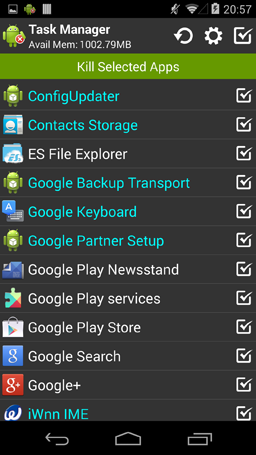
After enable system tasks function, system tasks will be shown up in task list in cyan color:
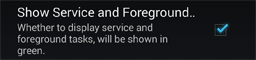
Foreground tasks and services are hidden by default before version 2.2.0, after version 2.2.0, this kind of tasks are shown by default. You can enable it in preference page:
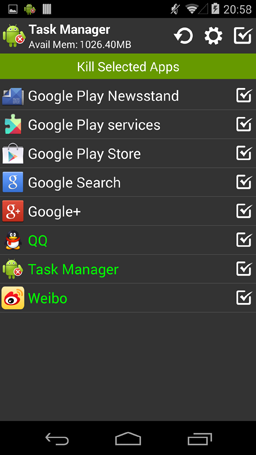
After enable foreground tasks and services, they will be shown up in task list in green color:
Kill Taskback to top
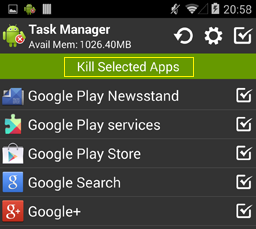
You can kill task freely which included in task list. There are two ways to kill them.
If your device is rooted, you can enable advanced feature in preference page to enhance the kill behavior:
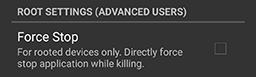
When you enabled "Force Stop" feature, it will directly force stop the selected application while killing. This may take longer time but will release more memory, and most of the tasks will not be restarted. This feature is supported from version 2.2.0. Since "Force Stop" mechanism has more control on your tasks, please add your important tasks to ignore list, in order not to stop them by mistake.
Ignore Taskback to top
Sometimes you want to hide application from task list to ignore killing them:
Then you can add the application to ignore list. The tasks included in ignore list will not be displayed in task list.
You can remove task from ignore list in ignore list dialog. You can click "Ignore List" button in option menu to invoke this dialog.
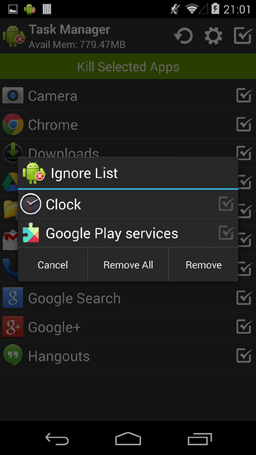
Note:
Auto-Kill Taskback to top
Task Manager support kill tasks when your screen turns off. Task Manager contains an auto-kill list, every task included in this list, will be killed automatically when screen turns off. This feature will automatically free your memory and speed up your phone without any manual actions, keep your system always clean. You can enable or disable this feature in preference page.
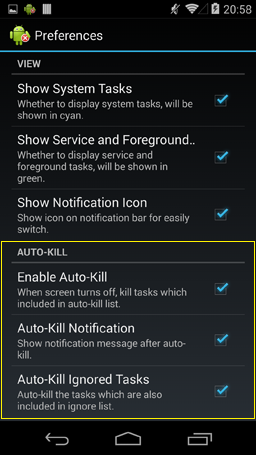
Also you can configure if you want to have a notification message after each auto-kill like following picture:
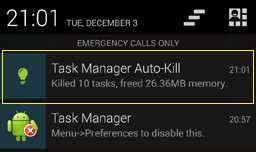
If you click the auto-kill notification message, it will popup a dialog to show the auto-kill tasks summary, including how many memory is freed, how many tasks are killed, and what are they:
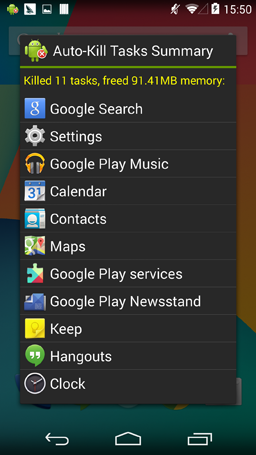
Context Menuback to top
Items when click task item:
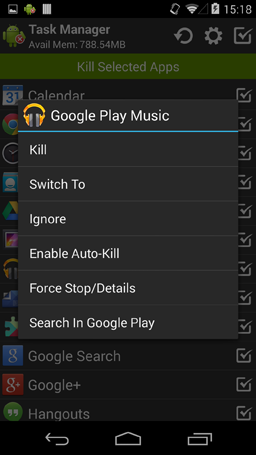
Preference Pageback to top
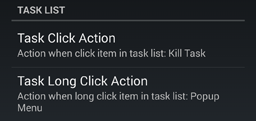
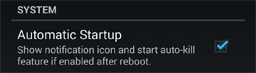
In preference page, you can specify following settings that have not been mentioned:

If you like this application, please purchase ad-free version to support our work! You can click "Remove Ad" menu item in settings page to download the ad-free version from Google Play. This purchase record is bound to your Google account, it means for all your devices using the same google account, you can purchase once and get ad-free version on all devices.
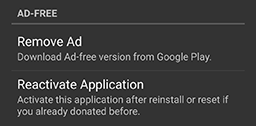
If you have made in-app purchase through legacy donation mechanism before, you can click "Reactivate Application" menu item, it will check your donation record in Google Play database for your account and then enable ad-free version if donation record found. You need to install payment module to finish this process.
Question: Why can't I kill task manager itself?
Answer: Task Manager ignore itself from killing list. Kill Task Manager itself will cause widget stop refreshing.
Question: Why can't some task be killed?
Answer: You did kill the task but some task may restart after killed when necessary. For these apps, please upgrade to version 1.6.6 or above, it contains a force stop menu item
for you to go to "Application Info" screen, then press "force stop" button to forbid them restarting anymore. If your device is rooted, please upgrade to version 2.2.0 or above, and enable "Force Stop" root settings in preference page, then task manager can directly force stop selected applications without go to "Application Info" screen.
Question: Why can't my widget refresh?
Answer: Task manager application might be killed by other applications. You can single click on this widget to activate the refresh function again. Widget may stop working after some upgrade, you can delete the widget and add it again to resolve the problem. If you set widget interval to "Never", the widget only update when you trigger it to kill applications.
Question: I am so concern about the battery which used for widget refresh.
Answer: You can specify the refresh interval in preference page from 5 seconds to 5 minutes. Even you can disable refresh when you choose interval to "Never", then the widget only update when you trigger it to kill applications.
Question: How can I know which tasks are auto-killed by task manager?
Answer: You can enable auto-kill notification in preference page. Then after each auto-kill, there will be a light bulb in the notification bar. You can click the notification message, then it will popup a summary dialog for you to review the auto kill result.
Question: It seems that Task Manager does not kill some tasks?
Answer: Since version Froyo Android has changed its policy for killing applications. Task Manager now only kill background processes. This is the
same as the android kernel killing processes to reclaim memory.
Android will take care of restarting these processes in the future as
needed in order not to break other applications by removing their
alarms or stopping their services.
So currently you can also rely on Task Manager to reclaim memory without break your critical processes. If you do want to close the task completely, you need to root your device and upgrade to version 2.2.0 or above, and enable "Force Stop" root settings in preference page, then task manager can directly force stop selected applications for you.
Question: I can not find my problem in this FAQ list?
Answer: Please email me your problem together with your phone type and android version: support@rhmsoft.com